

Your Instagram following list tells a story — who you’re interested in, who you’re keeping tabs on, your professional connections, your personal relationships. For many users, that’s more information than they’re comfortable sharing publicly.
The good news: you have more control than you might think. The bad news: Instagram still hasn’t made it simple.
This guide cuts through the noise. No fake hacks, no risky third-party apps — just honest, up-to-date information on what actually works in 2026 and how to combine privacy tools for the best results.
The Honest Answer: Can You Fully Hide Your Following List on a Public Account?
Let’s start with what Instagram actually allows — because there’s a lot of misinformation circulating.
As of 2026, Instagram has begun rolling out a feature that hides followers and following lists by default, even on public accounts. However, this rollout is not yet global and hasn’t reached all users. If you have it, you’ll find the toggle under Settings → Account Privacy.
If you don’t have it yet, the hard truth is: Instagram does not offer a native, one-click solution to fully hide your following list while keeping your account public. There is no hidden setting buried in menus that accomplishes this completely.
But that doesn’t mean you’re helpless. A combination of Instagram’s existing privacy tools can dramatically reduce who can meaningfully access your following list and monitor your activity.
Method 1: Block Specific Users (Most Effective)
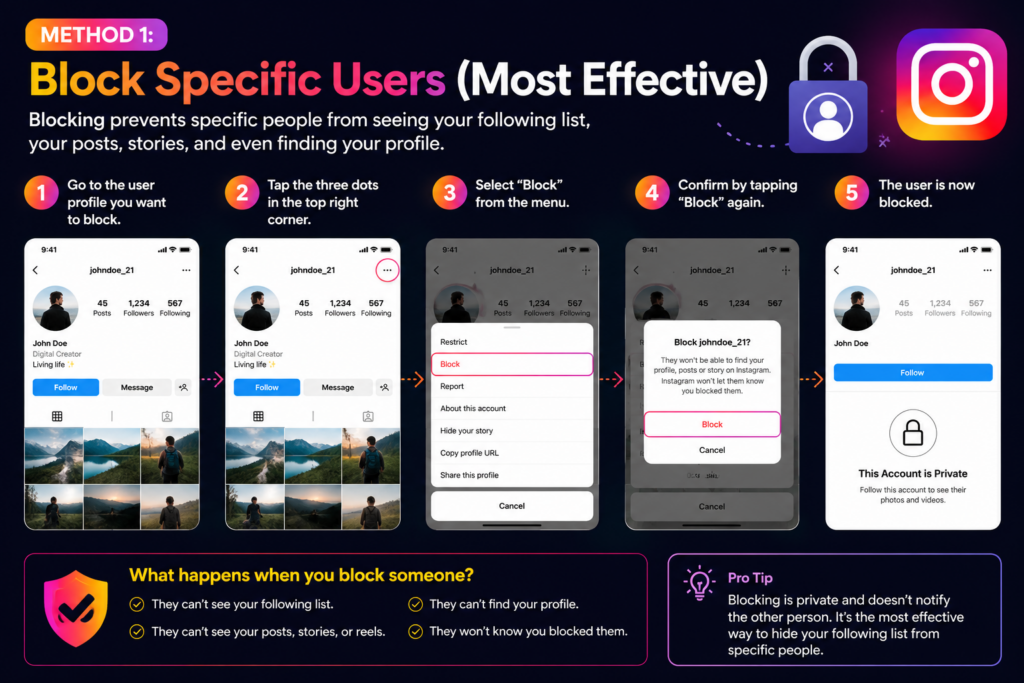
Best for: Hiding your profile from specific people entirely.
Blocking is the most complete solution available right now. When you block someone:
- They cannot visit your profile
- They cannot see your followers or following list
- They cannot find you in search
- They cannot see your posts, Reels, or Stories
- Any previous likes or comments from them become invisible to you
How to block someone on Instagram:
- Open Instagram and go to the person’s profile
- Tap the three-dot menu (⋮) in the top-right corner
- Select Block
- Instagram will ask if you want to block just that account or also accounts they may create — choose the broader option if needed
- Tap Block to confirm
Important nuances:
- You can also block someone directly from your followers list: go to Profile → Followers, tap the three dots next to a name, and select Remove or Block
- Blocked users are not notified, but they may figure it out if they try to visit your profile
- Blocking is reversible — you can unblock at any time
Limitation: This only works for people you already know about. Anyone else with a public account can still view your following list.
The Complete Guide to Using Instagram Direct Message (DM on Instagram)
Method 2: Restrict Accounts (The Quiet Alternative to Blocking)
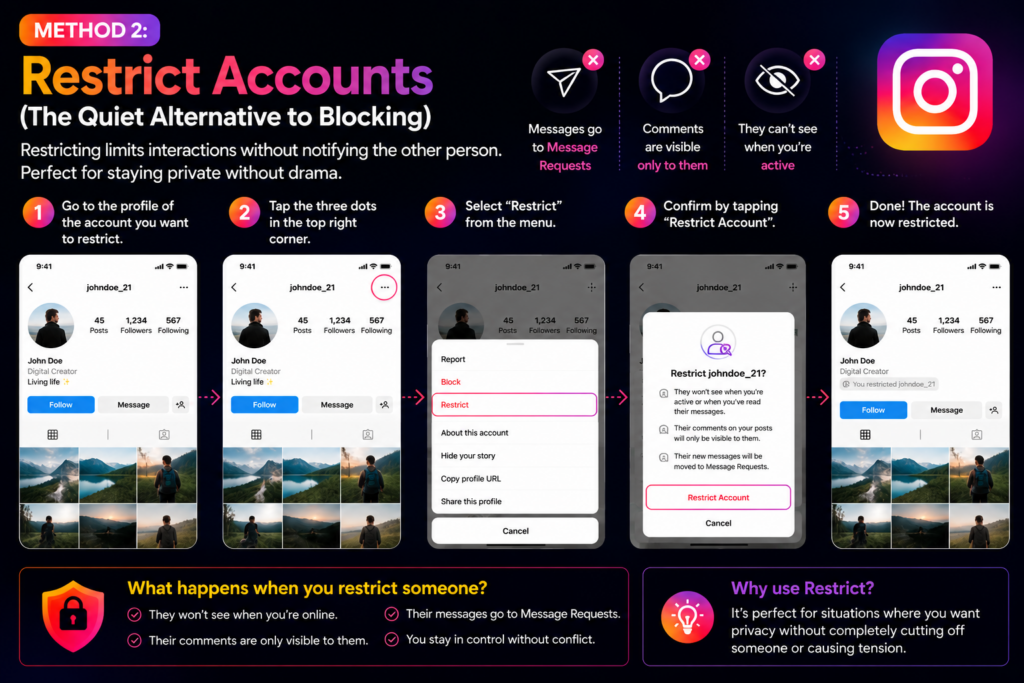
Best for: Reducing someone’s access without the finality of blocking.
The Restrict feature is Instagram’s “soft block.” The restricted person doesn’t know they’ve been restricted — they can still visit your profile and see your following list — but their ability to engage with you is significantly curtailed.
What happens when you restrict someone:
- Their comments on your posts are only visible to them (you can approve or delete them)
- You don’t receive notifications from them
- Your activity status (online/offline) is hidden from them
- Their direct messages go to your Message Requests, not your main inbox
How to restrict someone:
- Go to their profile
- Tap the three-dot menu (⋮)
- Select Restrict
- Confirm
Alternatively, swipe left on a message from them in your DMs and tap Restrict.
When to use Restrict vs. Block: Use Restrict for coworkers, acquaintances, or people where blocking would cause social awkwardness. Use Block for people you genuinely don’t want accessing your profile at all.
Method 3: Remove Followers You Don’t Want
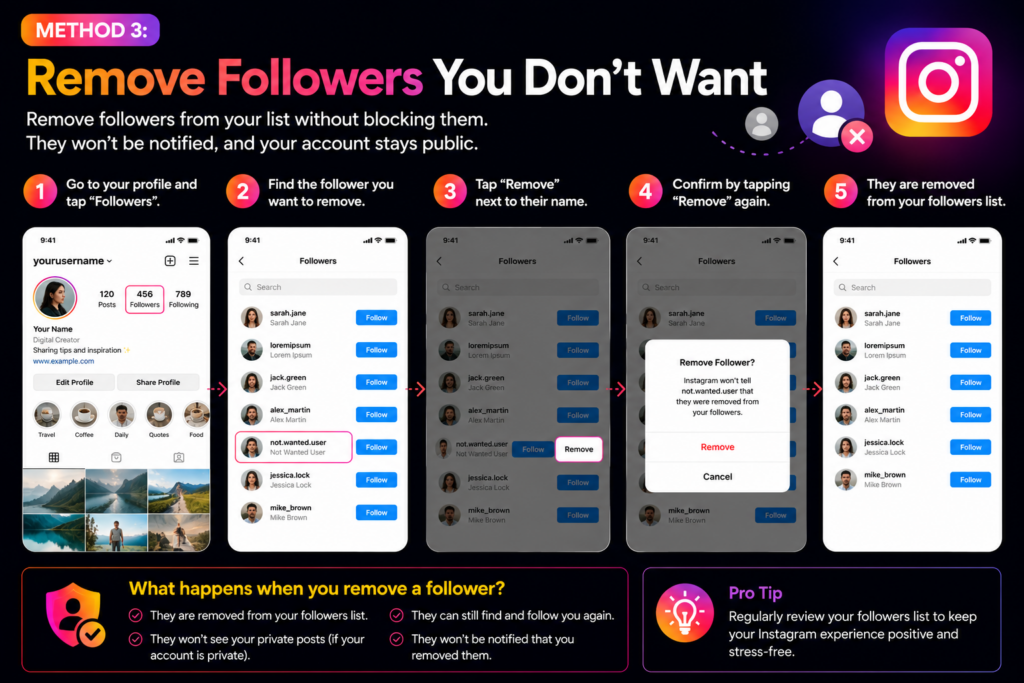
Best for: Cleaning up your audience after switching from private to public.
If your account was previously private and you made it public, you might have accumulated followers you’d rather not have. You can quietly remove them.
How to remove a follower:
- Go to your Profile
- Tap Followers
- Find the account you want to remove
- Tap the three dots (⋮) next to their name
- Select Remove
Instagram does not notify the person that they’ve been removed. They can re-follow you if they visit your profile, however, since your account is public.
Pro tip: Removing someone from your followers doesn’t prevent them from viewing your public profile or following list. It only stops them from seeing your private content (if your account is private). On a public account, this is more about keeping your follower count clean than hiding content.
How To Find Out Who Is Behind A Fake Instagram Account
Method 4: Turn Off Activity Status
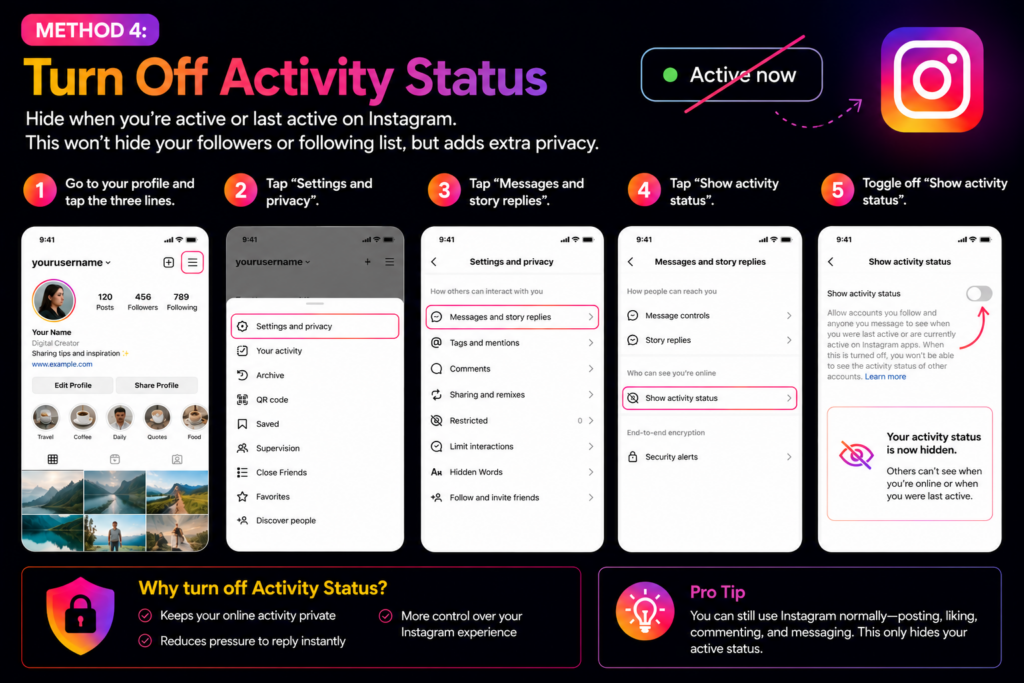
Best for: Stopping people from tracking when you’re online.
People who monitor your activity often use your online status as a signal. Disabling your activity status adds a meaningful layer of privacy.
How to turn off activity status:
- Open Instagram and go to Settings (☰ → Settings)
- Tap How others can interact with you
- Select Activity status
- Toggle Show activity status off
What this does:
- No one can see when you were last active or when you’re currently online
- You also lose the ability to see others’ activity status (it’s a two-way setting)
This won’t hide your following list, but it reduces the incentive for someone to stalk your profile repeatedly.
Method 5: Hide Stories From Specific People
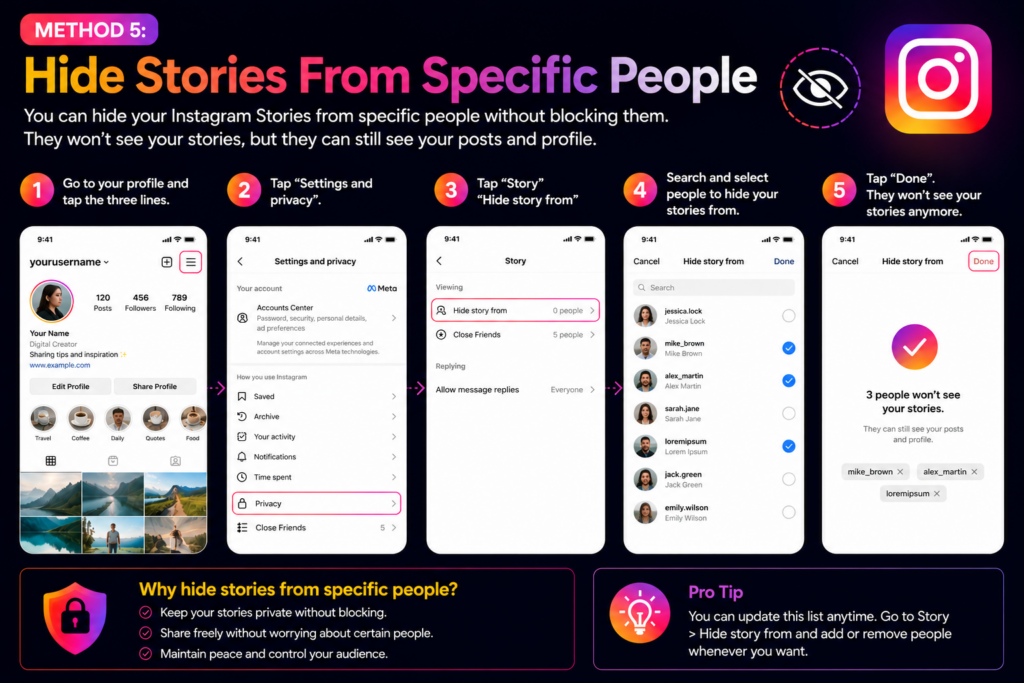
Best for: Reducing profile visibility without blocking.
If someone keeps visiting your profile and watching your Stories, hiding your Stories from them limits what they can see — even if you’re public.
How to hide Stories from specific accounts:
- Go to Settings → Privacy
- Tap Story
- Select Hide story from
- Search for and add the accounts you want to exclude
Additional Story privacy options worth knowing:
- Close Friends list: Share certain Stories only with a curated list
- Story replies: Restrict who can reply to your Stories
- Resharing: Prevent others from sharing your Stories as messages
How to Add a Link to Your Instagram Stories (And How to Use It)
Method 6: Use Close Friends for Selective Sharing
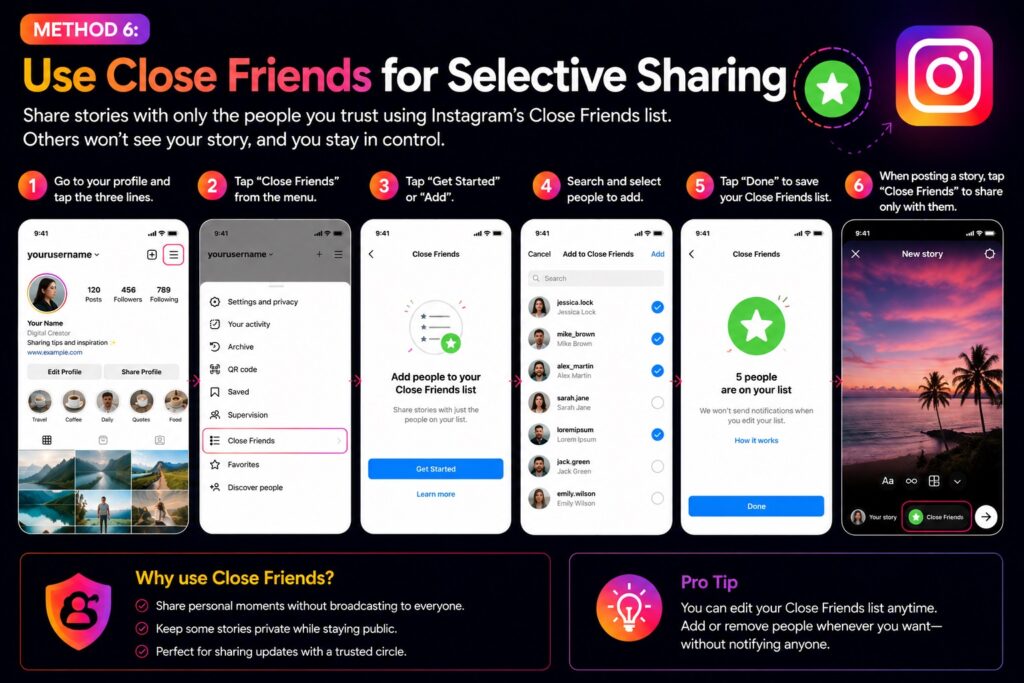
Best for: Keeping certain content away from your full follower base.
The Close Friends feature lets you post Stories (and now Notes and some other content) visible only to a selected list of people.
How to set it up:
- Go to your Profile
- Tap the hamburger menu (☰)
- Select Close Friends
- Add the people you want on your list
When you post a Story, you can choose to share it with Everyone, Close Friends only, or hide it from specific people. This is great for keeping professional and personal content separated on one account.
Method 7: Limit Comments and Messages
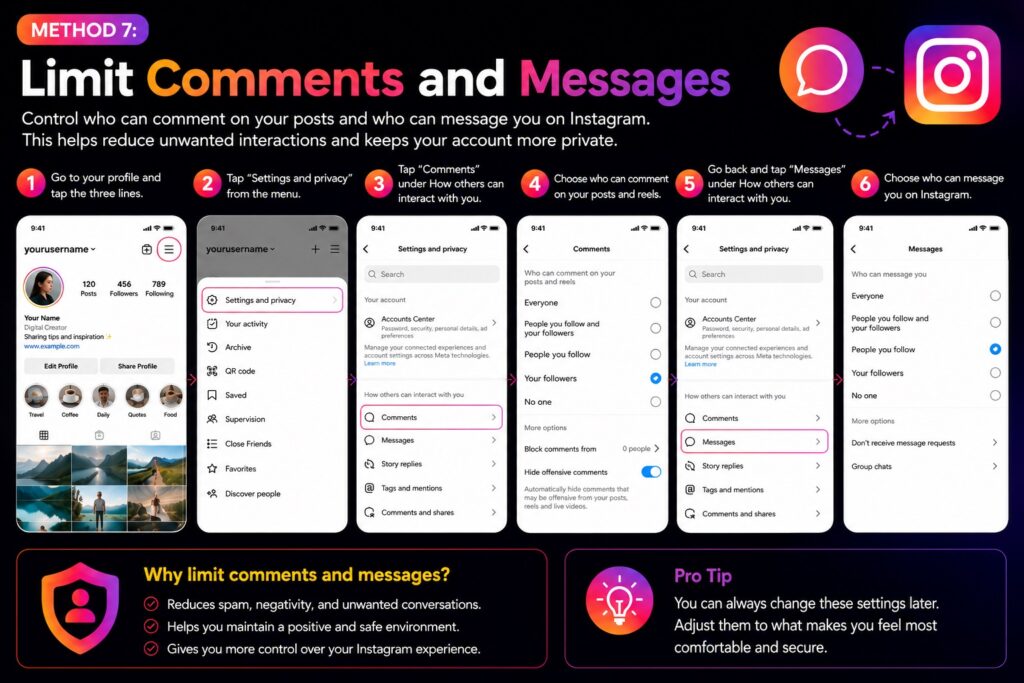
Best for: Reducing unwanted interaction from strangers.
If your following list is attracting attention from people you don’t know, tightening your interaction settings helps.
Comment controls:
- Settings → Privacy → Comments
- Options: Allow comments from Everyone / People you follow / Followers / People you follow and their followers / No one
- You can also add specific words or phrases to a filter list to auto-hide comments containing them
Message controls:
- Settings → Privacy → Messages and Story Replies
- Restrict who can send you message requests
- Disable story replies from people you don’t follow
How To See A Friend’s Instagram Activity
What Doesn’t Work (And Why You Should Avoid It)
There’s a lot of bad advice on this topic. Here’s what to avoid:
Third-Party Apps Claiming to Hide Your Following List
Apps that promise to hide your following list, show you who viewed your profile, or manage your privacy settings are almost universally:
- Against Instagram’s Terms of Service — your account can be banned
- Security risks — many harvest your login credentials
- Ineffective — they don’t actually have access to change Instagram’s backend privacy settings
Never give a third-party app your Instagram password.
“Empty Your Following List” Tricks
Some guides suggest unfollowing everyone to hide the list. This defeats the purpose of following anyone and doesn’t actually hide anything — it just makes your following count zero.
Repeatedly Changing Usernames
This does nothing to hide your following list. It just confuses people who know you and can look suspicious.
Ghost or Dummy Accounts
Creating a second account to “move” your activity is complicated, violates Instagram’s spirit, and still doesn’t solve the core issue.
Why People Want This Feature
Understanding the demand helps clarify what you’re actually trying to protect:
Personal privacy: You don’t want strangers reverse-engineering your social circle or figuring out who you’re close to based on mutual follows.
Avoiding social judgment: Following an ex, a competitor, or a controversial account shouldn’t be anyone else’s business.
Professional discretion: Networking connections, client relationships, or competitor research shouldn’t be publicly visible.
Preventing stalking and harassment: A public following list makes it trivially easy for someone to map your interests, identify your friends, and track your online behavior.
Influencer strategy: Creators sometimes don’t want competitors to see who they’re collaborating with or following in their niche.
Will Instagram Add a Full Hide Feature?
Almost certainly — eventually. Instagram has been testing a feature that hides follower and following counts and lists for public accounts, and some users in limited rollouts have already seen it. Given the broader privacy trend across social media (Twitter/X, TikTok, BeReal all added similar features), it’s a matter of when, not if.
For now, keep an eye on Settings → Account Privacy — if the feature has rolled out to your account, you’ll see options there.
Your Best Privacy Setup: A Combined Approach
No single method is perfect. Here’s how to stack them for maximum control:
| Privacy Goal | Best Method(s) |
|---|---|
| Hide profile from specific people | Block |
| Reduce interaction without blocking | Restrict |
| Stop online tracking | Turn off Activity Status |
| Limit Story viewers | Hide Stories / Close Friends |
| Clean up your follower base | Remove followers |
| Reduce unwanted messages | Restrict message requests |
| Prevent comment spam | Filter comments |
Recommended baseline setup for a public account:
- ✅ Block anyone you actively don’t want seeing your profile
- ✅ Restrict acquaintances or colleagues who feel intrusive
- ✅ Turn off activity status
- ✅ Set Story visibility to Close Friends for personal content
- ✅ Limit message requests to people you follow
- ✅ Periodically audit and remove followers you don’t recognize
Final Thoughts
Instagram hasn’t made hiding your following list on a public account easy — but the platform has given you enough individual privacy tools that, used together, they give you meaningful control over who can monitor your activity.
The single most important thing to remember: there is no shortcut app or hidden setting that magically solves this. Anyone telling you otherwise is either misinformed or trying to get your account credentials.
Use the methods in this guide, stay patient for Instagram’s full rollout of the following list privacy feature, and regularly review your privacy settings — Instagram updates them frequently enough that checking every few months is worth doing.